From supplier PDFs to QuickBooks Online. To fields you can check.
OCR software for QuickBooks Online that prepares supplier details, dates, totals, and supported line items from PDFs and images. Compare each field with the original and correct uncertain values before approving the handoff.
Fictional document and values for this illustrative workflow.
THE SOURCE BESIDE ITS EXTRACTED FIELDS
Read it. Then review it.
Switch documents to compare the details.
EXTRACTED DATA · BEFORE APPROVALIllustrative workflow.
Ready for your review.
The details, prepared. The approval, yours.
Supplier
Northline Paper Co.
Reference
INV-2048
Document date
Sep 18, 2026
Total
$284.20USD
Subtotal
$260.00
Tax shown on source
$24.20
Due date
2026-10-18
Currency
USD
Supported line items Before account mapping
Office supplies3 × $60.00$180.00
Printer paper4 × $20.00$80.00
northline-invoice.pdf
Illustrative workflow. Fictional documents and extracted values.No uploads. No live QuickBooks changes.
01Upload a PDF or photo
02Extract supported fields
03Review and correct
04Approve the handoff
PDF & PHOTO CAPTURE
Start with the document. Keep the source in view.
Automated invoice data capture for QuickBooks starts with supported supplier PDFs and readable images. Keep the original in view while checking the prepared data.
01 / PHOTO CAPTURE
FROM THE REAL WORLD
A clear photo. Fields you can review.
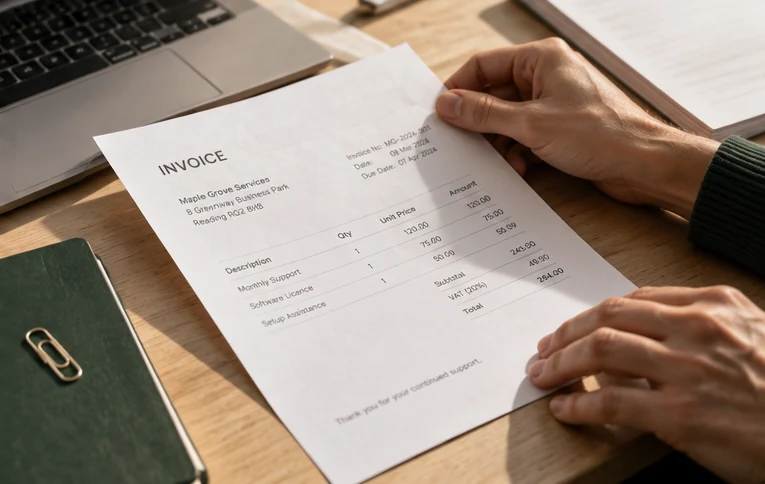
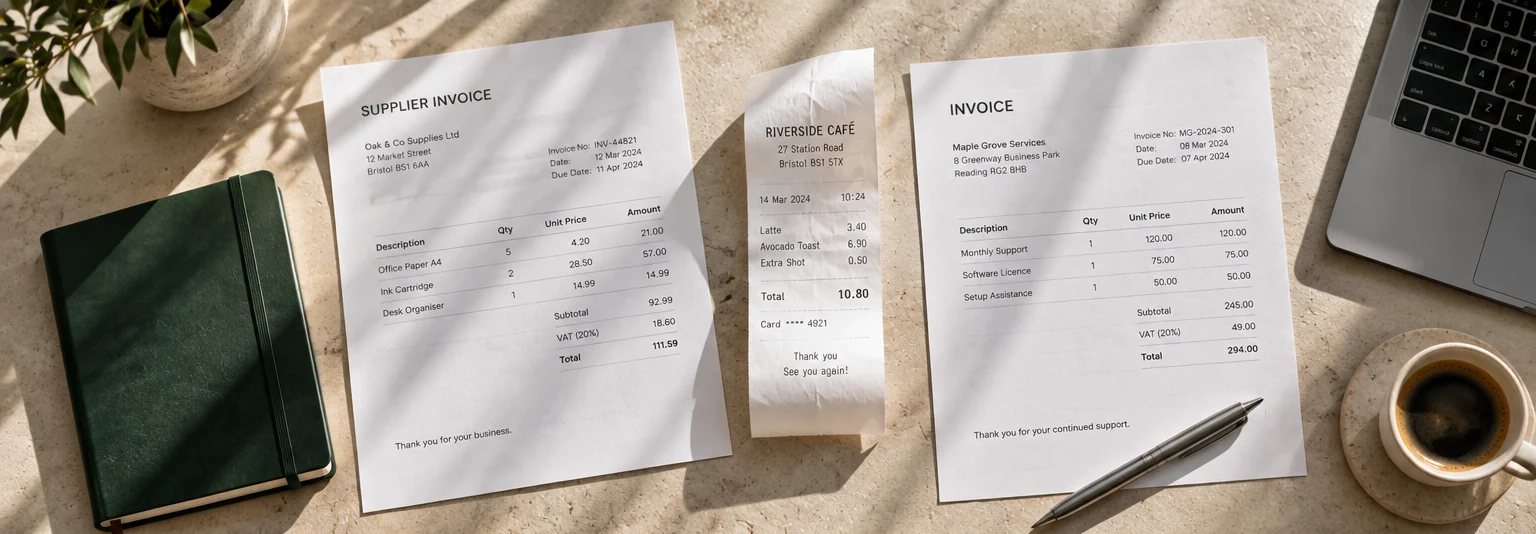
Upload a readable invoice or receipt photo with the whole document in frame. Check faint text, glare, cropped edges, and unclear amounts against the original before approval.
02 / INVOICE OCR
FROM YOUR SUPPLIER
Your supplier’s PDF. Its details, ready to check.
Upload a supplier PDF directly, including a readable scan. Extract supported fields without printing and photographing the file again. Missing or uncertain values stay part of your review.
AUTOMATED INVOICE DATA CAPTURE
From invoice text to structured fields.
ScannerPilot’s invoice data extraction software for QuickBooks organizes supported details into a review draft. OCR invoice processing for QuickBooks begins with reading the source; you confirm the meaning and accuracy of each prepared field.
Supplier
Supplier name
Check the business name against the source before confirming a vendor mapping.
Reference
Invoice number
Check prefixes, punctuation, and characters that can be misread, such as 0 and O.
Dates
Invoice date and due date
Confirm which date is which, and correct missing or ambiguous values.
Amounts
Currency, subtotal, tax, and total
Compare each value with the source and check that the figures reconcile.
Line items
Descriptions, quantities, unit prices, and amounts
Review supported rows for missing, merged, or incorrectly read values.
Extraction depends on the document layout, legibility, and supported extraction workflow. A missing field needs review; it is not a value to assume.
SUPPORTED LINE-ITEM EXTRACTION
Read the rows. Check the details.
With ScannerPilot’s invoice line item extraction software for QuickBooks, supported rows become descriptions, quantities, unit prices, and amounts you can review beside the source.
Confirm the rows were captured correctly and reconcile the amounts with the invoice totals. Account mappings are a separate review decision; extracted rows are not automatically classified accounting entries.
Illustrative workflow.Northline Paper Co. · INV-2048 · USD
Extracted rows from the fictional Northline invoice
Description
Qty
Unit price
Amount
Office supplies
3
$60.00
$180.00
Printer paper
4
$20.00
$80.00
Line subtotal
$260.00
Tax shown on source
$24.20
Invoice total
$284.20
Account mappings: confirm during review.
CORRECTIONS BEFORE APPROVAL
Prepared data. Your review comes next.
Invoice data entry automation for QuickBooks prepares a draft for your review. Check missing, misread, or uncertain fields against the source. Confirm ambiguous dates and supplier names, and reconcile the line amounts with the invoice total.
01
Correct the fields and line items.Check names, references, dates, and amounts against the source. If the original is unclear, confirm the detail with the supplier.
02
Resolve possible duplicates.Compare flagged documents in ScannerPilot before moving them forward.
03
Approve before anything moves.Check the company, coding, and record type.
The new upload matches details in an earlier ScannerPilot document. Take a closer look before approving.
NEW UPLOADEARLIER DOCUMENT
Northline Paper Co.INV-2048$284.20
Northline Paper Co.INV-2048$284.20
A match is a reason to review. Not a decision made for you.
MULTIPLE-DOCUMENT PROCESSING
Upload several files. Review each document.
Select or drag multiple invoice PDFs and photos into the intended workspace. Each document has its own extraction status, source, and review draft, so you can see what is ready and what needs attention.
Keep separate invoices in separate files. Check possible duplicate uploads, resolve failed extraction, and review each document before approval. File and plan limits still apply.
Uploading a batch does not approve the documents. Review and approval remain part of the workflow.
THE APPROVED HANDOFF
Reviewed here. Approved for QuickBooks.
After reviewing the extracted data and supported mappings, approve the supplier invoice for the QuickBooks Online Bill workflow. See the full handoff for vendor and account choices, approval controls, and original attachment status.
How does invoice OCR software for QuickBooks prepare a document?
An invoice scanner creates a digital copy of a document. OCR reads the text, and extraction organizes supported details into fields such as supplier, invoice number, dates, and amounts. ScannerPilot keeps the original available so you can check and correct the prepared data before approval.
How does PDF invoice data extraction for QuickBooks work?
Upload the supplier PDF directly, including a readable scanned PDF. ScannerPilot reads the document and prepares supported fields for review. You do not need to print a digital invoice and photograph it again. Check the extracted values against the source, especially when the scan is faint, skewed, or incomplete.
What does AI invoice processing for QuickBooks change?
AI can help turn document text into structured invoice details in the supported extraction workflow. Results depend on the document and the extraction setup. Review missing or uncertain values, totals, and line items before approval; a prepared draft is not an approved accounting entry.
Which steps does invoice automation software for QuickBooks cover?
ScannerPilot’s invoice processing software for QuickBooks covers intake, extraction, human review, and approved handoff to QuickBooks Online. It reduces repeated data entry while your team confirms the source details and supported accounting choices. This capture workflow does not execute supplier payments or provide full accounts-payable automation.
Can I use it as bulk invoice processing software for QuickBooks?
You can select or drag several supported files into the intended workspace. Each document has its own extraction and review status. Keep separate invoices in separate files, check possible duplicates, and resolve documents that need attention. Uploads remain subject to your workspace’s file and plan limits.
Are extracted line items already classified?
No. Supported line-item extraction prepares descriptions, quantities, unit prices, and amounts where readable. It does not by itself turn those rows into classified accounting entries. Check the rows and totals against the source, then confirm the supported account mappings during review.
Does automated invoice processing software for QuickBooks still need approval?
Yes. Compare the original with the prepared fields, check the intended company and accounting mappings, and resolve anything unclear before approving a sync. Prepared does not mean approved.
What happens to the original document?
The PDF or image stays linked to the workflow and can be attached to the created QuickBooks Online transaction. Check the transaction and attachment outcomes separately; a failed attachment may need its own retry.
Does a receipt always become a Bill?
No. Supplier invoices can follow a Bill workflow, while paid receipts can follow an Expense or Purchase workflow. The right choice depends on payment context and your accounting process—not just the document’s title.
How are possible duplicates handled?
ScannerPilot checks repeated files and can flag likely duplicate documents using details such as supplier, reference, date, and amount. Compare the documents before approval. These checks apply to documents in ScannerPilot; also check whether the purchase is already recorded in QuickBooks.
Do I need to replace QuickBooks Online?
No. ScannerPilot handles document preparation and review before the approved record goes into QuickBooks Online. Your accounting system and your accounting decisions stay with you.
START WITH THE NEXT DOCUMENT
You already have the paperwork. Give it a better next step.

 01 / PHOTO CAPTURE