
Keep QuickBooks.
Lose the copy-paste.
From reviewed paperwork
to the books you already use.
Fieldwork Supply Co.
SUPPLIER INVOICENot paid yet
Fictional document · demonstration only
Fieldwork Supply Co.
$648.00Connected doesn’t mean out of your hands.
Approved by you. Then sent.Same details.
New destination.
An unpaid supplier invoice becomes a Bill after review.
Track what you owe. Confirm the due date and supplier before sending.
Supplier invoice
Prepared and checked by youBill
An amount still to payMatch the supplier on the document to the intended QuickBooks supplier.
Not just the numbers.
The proof behind them.
Keep the original close to the accounting entry.
Less searching when you need to check it later.
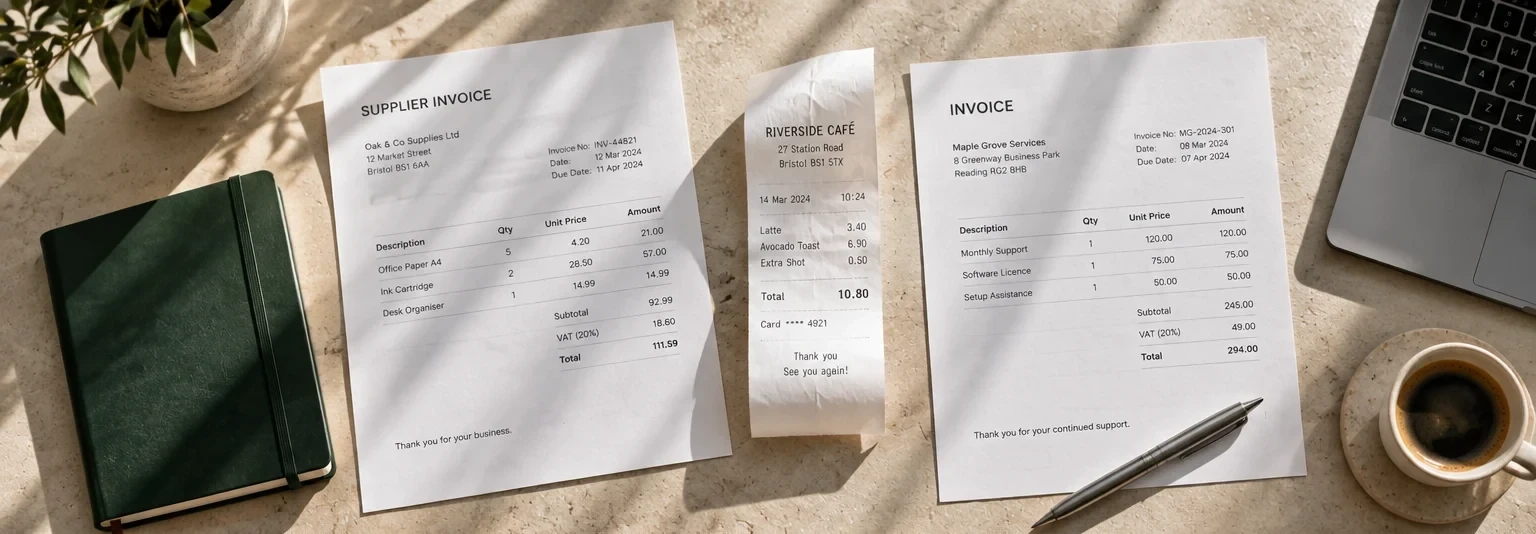 THE PAPERWORK YOU STARTED WITH
One record.
Its original, attached.
The original PDF or image is attached to the created Bill or Expense when attachment sync succeeds.
Check both parts of the handoff“Sent” is a start.
Know what arrived.
The accounting record and its attachment are two things to check. A file issue should never look like a fully finished job.
Try the attachment-issue example
A little more connected.
A small setup.
A clearer routine.
Start with one workspace and one document.
Know where it’s going before you send it.
Connect the right company
Link the intended QuickBooks Online company to your ScannerPilot workspace.
Check your references
Review supplier and account mappings so prepared records have the right destination.
Review your first handoff
Approve one document, then check the record and attachment status after sync.
A few things worth knowing.
What does accounting sync send to QuickBooks Online?
ScannerPilot prepares approved supplier invoices as Bills and paid receipts or purchases as Expenses or Purchases. Review the transaction type, supplier, account references, dates and amounts before sending. The source PDF or image is attached when attachment sync succeeds.
Talk to our teamWill anything sync without my approval?
No. Review and approval come before the QuickBooks Online handoff. Check the extracted data, accounting mappings and any duplicate warnings before approving the document.
Talk to our teamCan I connect a different QuickBooks company for each client?
Yes. Each client workspace connects to its own QuickBooks Online company, keeping documents, suppliers, accounts, settings and history separate. Confirm the intended company before your first sync.
Talk to our teamWhat happens if the record is created but the file is not attached?
Check the transaction status and the attachment status separately. A created record with a failed attachment is not a fully completed handoff. Review the error and available recovery action before sending anything again. The example on this page demonstrates a file-only retry; it does not connect to your account.
Talk to our teamIs this a replacement for QuickBooks?
No. ScannerPilot handles the document preparation and review before the accounting handoff. QuickBooks Online remains your accounting system. This page focuses on QuickBooks Online, not QuickBooks Desktop or other accounting platforms.
Talk to our teamHow do I get started?
Create your ScannerPilot workspace, connect the intended QuickBooks Online company, and check the supplier and account references. Start with one document: review it, approve it, then check both the record and attachment status after sync.
Talk to our teamYour books.
Less in between.
Bring your next invoice. Leave the retyping behind.